

Webinars
How to scale UI test automation with Tricentis Testim
Learn how to scale UI test automation with Tricentis Testim, and...
A beginner walkthrough of Selenium functional testing in Python: pip install, ChromeDriver version matching, locators & a form filled on a live signup page.

Web applications have been a mainstay of the internet since its inception in the mid-1990s. However, they are only now entering mainstream consciousness. This is partly because of better interfaces, but primarily because of the growing use of SaaS solutions. Awareness has also grown thanks to mobile devices that provide instant access to information and services on the go. This increase in access has caused an explosion in website development. Now organizations scramble to make sure their online presence stays up-to-date and meet current technology standards. One of the industry standards is to include comprehensive testing as part of good software development practices. We can make testing web applications easy by using a framework like Selenium for functional testing.
This post covers how to write your first functional test using Selenium’s built-in webpage object model (WebDriver). We’ll introduce what a functional test is, then teach you how to install and run Selenium on your computer and write a very simple functional test.
Functional testing allows you to simulate user interactions with a website. Interactions include filling out forms, clicking links, entering data into fields, and so on. This provides the functionality that users can take advantage of during regular use. It allows you to ensure that your web app behaves as expected when end users perform these actions.
Now that we know what functional testing is. Let’s look at one of the popular tools commonly used to perform functional tests.
Selenium is an automation tool that allows you to perform functional testing on a web application. It allows you to record and automate interactions with your website so you can run tests repeatedly. Selenium allows you to search through the recorded tests for specific issues. These issues include errors and other instances where the user experience falls short of expectations. Selenium does regression testing, helping ensure that new features you add don’t break existing functionality.
This tutorial provides a functional testing tutorial of how to use Selenium for automated browser tasks in Python code.
To follow along with this tutorial, you need a decent knowledge of Python 3. However, you can easily replicate the logic in the programming language of your choice.
Here’s a specific list of what you’ll need for this tutorial:
Let’s now look at how to install and setup selenium.
First, if you haven’t, you’ll need to install Python and then the Selenium package for Python using Pip.
pip install selenium
Next, you’ll need to check which Chrome version you’re using and install the specific Chrome driver for your version. You can also use other browsers like Firefox, Edge, and Safari. We’re installing a Chrome driver, so Selenium can work with a Chrome website to perform the functional tests.
After downloading the Chrome driver, create a folder on your desktop or working directory of your choice, and give it a name. Here, we’ll create a directory and call it Test.
Extract your Chrome driver to the Test folder and create a file called functional_testing.py.
You can use the IDE/code editor of your choice.
Now that you’re done with the setup and installation, let’s write and run our functional test.
You’ll follow the steps below to run a successful functional test of the call to action found on Testim’s landing page. Import the webdriver from the Selenium package. The webdriver will start a website instance so you can perform the tests. Also, let’s import By to help locate the elements in the website since we’ll be filling in a form and clicking a call to action button. You need to import Select because the form requires you to make a selection from an options list.
from selenium import webdriver
from selenium.webdriver.common.by import By
from selenium.webdriver.support.select import Select
Next, initialize the driver. Given that you have the drive in the same folder(the test folder created earlier) with your script’s file you can pass its path as a variable.
driver = webdriver.Chrome(‘./chromedriver.exe’)
Call the .get() method on your driver instance and pass a URL to the website you want the browser to hit upon successful load. This method ensures that the website fully loads before executing the next steps.
driver.get(“https://testim.io”)
You can maximize the browser to view what your website looks like when given more real estate. This shows how responsive your website is. You accomplish this by calling the .maximize_window() method on the driver.
driver.maximize_window()
You can use the .title method to get the website’s title. You can use pytest to confirm if the title is correct by using assert statements. However, in our case here, you can just use print to see the Testim’s website title Automated UI and Functional Testing — AI-Powered Stability — Testim.io.
title = drive.title
print(title)

Now that you're on the Testim homepage, use Selenium to click the GET TESTIM FREE button. To do this, you can leverage how selenium identifies elements on a webpage. You'll find the element by its name and store it in a variable.

cta_button = driver.find_element(By.ID, value="CRO-Hero-Button")
cta_button.click()
Call the .click() method on the variable to redirect you to a page where you’ll need to fill in your personal details as shown below, before you can start your free trial.
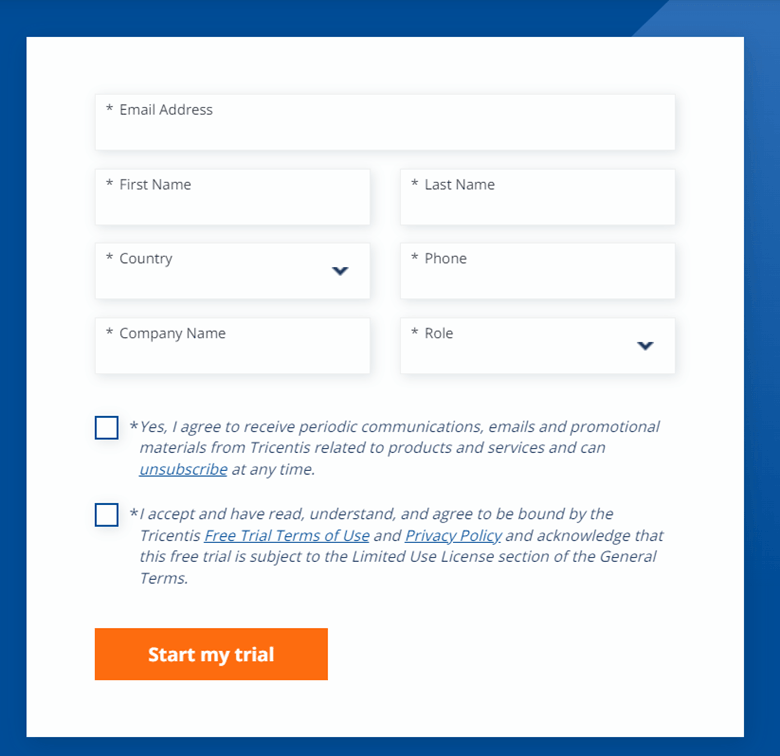
Upon successful rerouting, you need to find the input elements by their names and store them in variables. Then you call the send_keys method on the variables while passing the relevant information as a value. You’ll need to import the time module and call the sleep function to explicitly wait for a task to complete before proceeding to the next. This allows the driver time to locate the element and pass the input.
email = driver.find_element(By.NAME, value="Email")
email.send_keys("Enter your email")
time.sleep(3)

first_name = driver.find_element(By.NAME, value="FirstName")
first_name.send_keys("Enter your first name")
time.sleep(3)

last_name = driver.find_element(By.NAME, value="LastName")
last_name.send_keys("Enter your last name")
time.sleep(3)

phone_number = driver.find_element(By.NAME, value="Phone")
phone_number.send_keys("Enter your phone number")
time.sleep(3)

company = driver.find_element(By.NAME, value="Company")
company.send_keys("Enter your company")
The personal details form has an option’s list where you need to choose a country and a role. To achieve this, you’ll find the element by name and store it in a variable. Then you create a selection object and make a selection from the option list using the select_by_visible_text method.
country = driver.find_element(By.NAME, value="Country")
country_selection = Select(country)
country_selection.select_by_visible_text("Select your country")
time.sleep(3)

role = driver.find_element(By.NAME, value="Role__c")
role_selection = Select(role)
role_selection.select_by_visible_text("Select your role")

Finally, when you want to close the browser, you just call the .quit() method.

driver.quit()Functional testing checks that your web application performs according to a business’s requirements. In contrast, unit testing doesn’t allow you to test interactions on specific application elements dynamically, like for example, making clicks on a button or filling in forms. Suppose you have a button in your HTML form that needs to be clicked, and each time you click it, something happens. With classical unit testing techniques alone, we can’t simulate the button click, as unit tests only perform assertions. However, with Selenium, you can simulate clicking this button and use a unit test to test assertions to make sure the button does what it should.
Selenium provides feedback about problems before they reach the release stage and gives you more confidence as a developer when you take on larger projects. If you’re looking for a more detailed step-by-step approach to advanced Selenium testing, please look at Testim. With Testim, you can easily sign up, create a test plan, and start gathering feedback in under five minutes. Their simple interface provides you with everything you need to manage your test sessions, qualify testers, and send invitations for collaboration.
Learn how to supercharge your quality engineering journey with our advanced testing solutions.
Learn how to supercharge your quality engineering journey with our advanced testing solutions.