

Webinars
Test automation in 2026: Tosca in the cloud, agentic AI, and a smarter, more scalable future
Watch this webinar to hear two Tricentis experts discuss what’s next...
Learn how to connect to an MCP server, what tools you need, common issues, and best practices for secure testing workflows.
If you want AI to speed up your testing without causing mistakes or breaking things, connecting to an MCP server is the way to go.
This guide shows how to safely link AI clients to your tools, manage context, and get work done—like creating test cases, updating test plans, and organizing test data—without risking errors or lost information.
TL;DR: An MCP server securely connects AI agents to external tools by exposing controlled actions instead of giving direct system access.
A Model Context Protocol (MCP) server is a software program that uses a protocol layer called MCP to expose tools, resources, and workflows to AI agents in a controlled way.
The Model Context Protocol documentation describes it as “programs that expose specific capabilities of AI applications through standardized protocol interfaces.”
They sit between the model and real systems to manage context, state, and permissions so AI agents don’t casually do anything with your production environment.
Instead of calling API endpoints, AI invokes structured tools like, for example, “run regression suite”, “retrieve failure logs,” or “create defect with artifacts.”
TL;DR: MCP servers let AI safely interact with testing tools, CI pipelines, and bug trackers through structured workflows rather than direct API access.
Modern testing uses multiple tools—CI pipelines, test automation, Git, bug trackers—so letting AI access them directly is risky. An MCP server sits in between, exposing only approved actions, maintaining session state, and enforcing workflow rules.
Instead of calling API endpoints, AI invokes structured tools like, for example, “run regression suite”, “retrieve failure logs,” or “create defect with artifacts.”
MCP is context-aware and agent-driven, coordinating multi-step workflows with memory and guardrails. Traditional APIs are stateless and reactive, but MCP enables smarter automation.
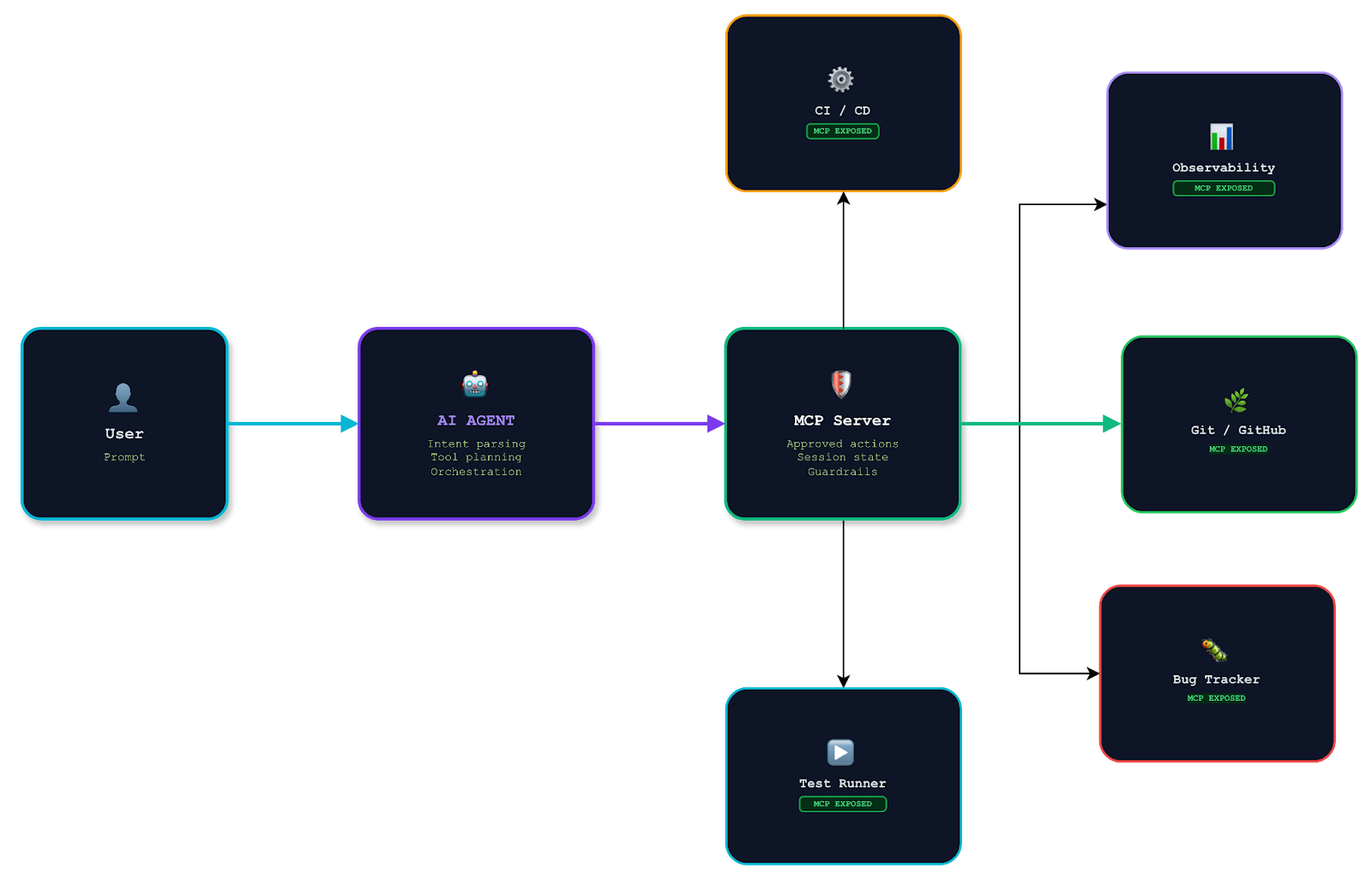
As Anthropic notes, “MCP provides a universal protocol — developers implement MCP once in their agent and it unlocks an entire ecosystem of integrations.” For QA teams, that translates to faster feedback and higher test reliability.
TL;DR: Connect an AI client like Claude Desktop to an MCP server (such as Notion) using connectors and OAuth to enable safe, structured tool interactions.
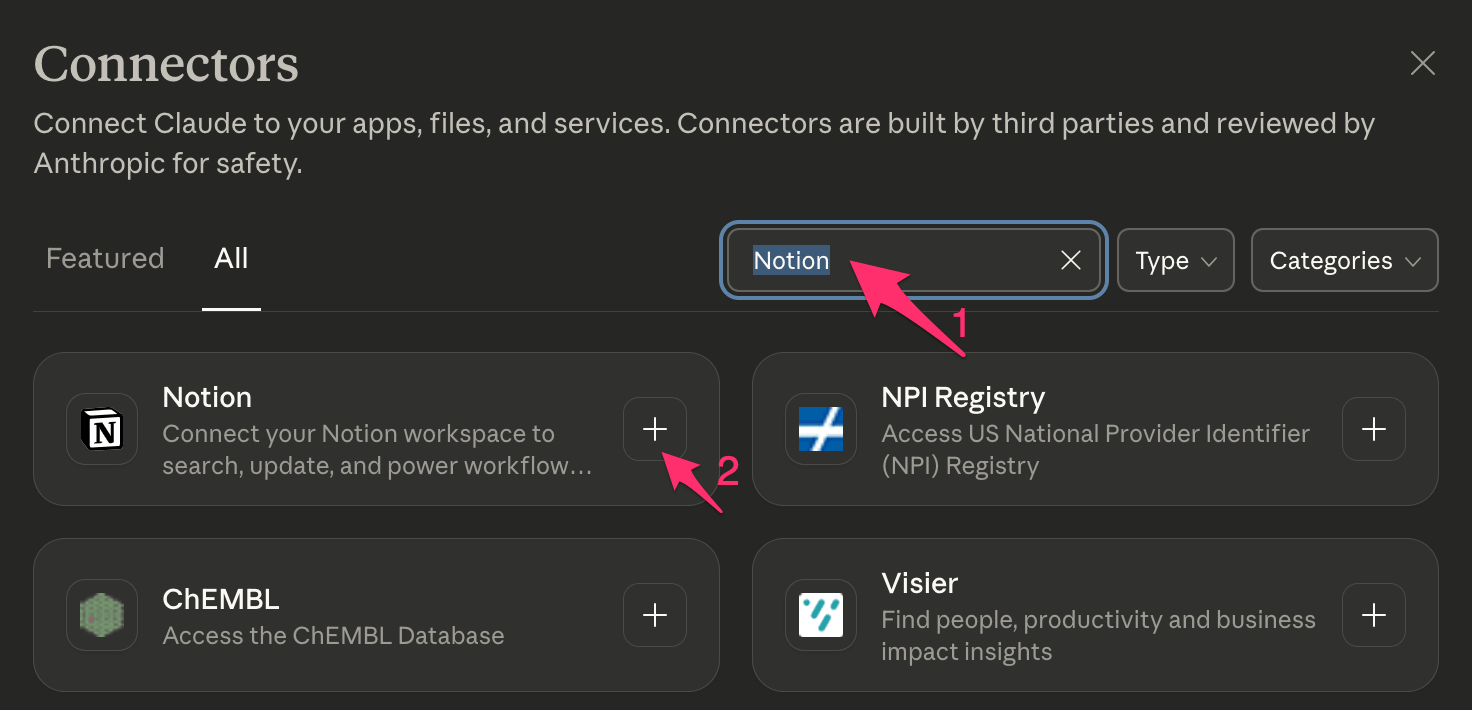
Here, we’ll be connecting Claude Desktop to a Notion MCP server, which gives the AI a structured way to read, write, and manage data—pull test cases, update plans, and create notes for faster onboarding.
Once you understand authentication, exposed capabilities, and context management, the same approach works for other MCP servers like Tricentis, enabling AI-driven test automation and defect tracking in complex environments.
The recommended way to connect to Notion MCP is through OAuth. It’s the easiest option and works with no token required, and because Notion hosts the MCP server for you, there’s nothing to install or manually configure.
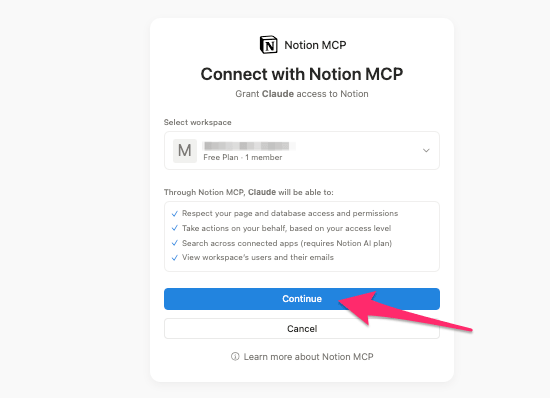
Before jumping in, it’s worth asking Claude if it’s connected and what it can do.
Start a new chat and ask something along these lines: “Are you connected to Notion MCP server? What can you help me do?”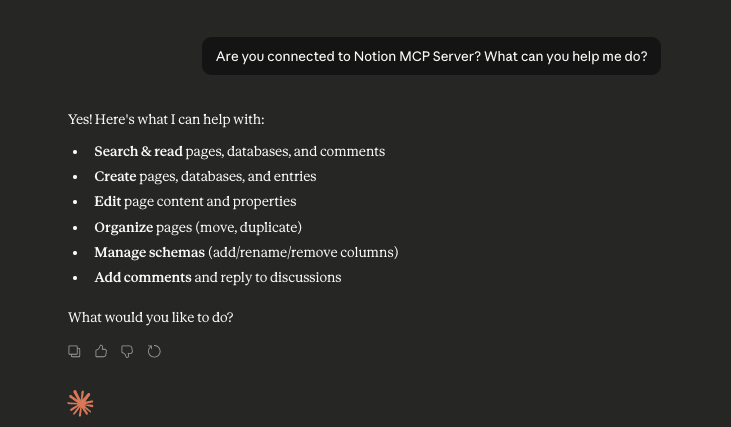
Claude will list its available actions, like:
This will help you know what to ask for.
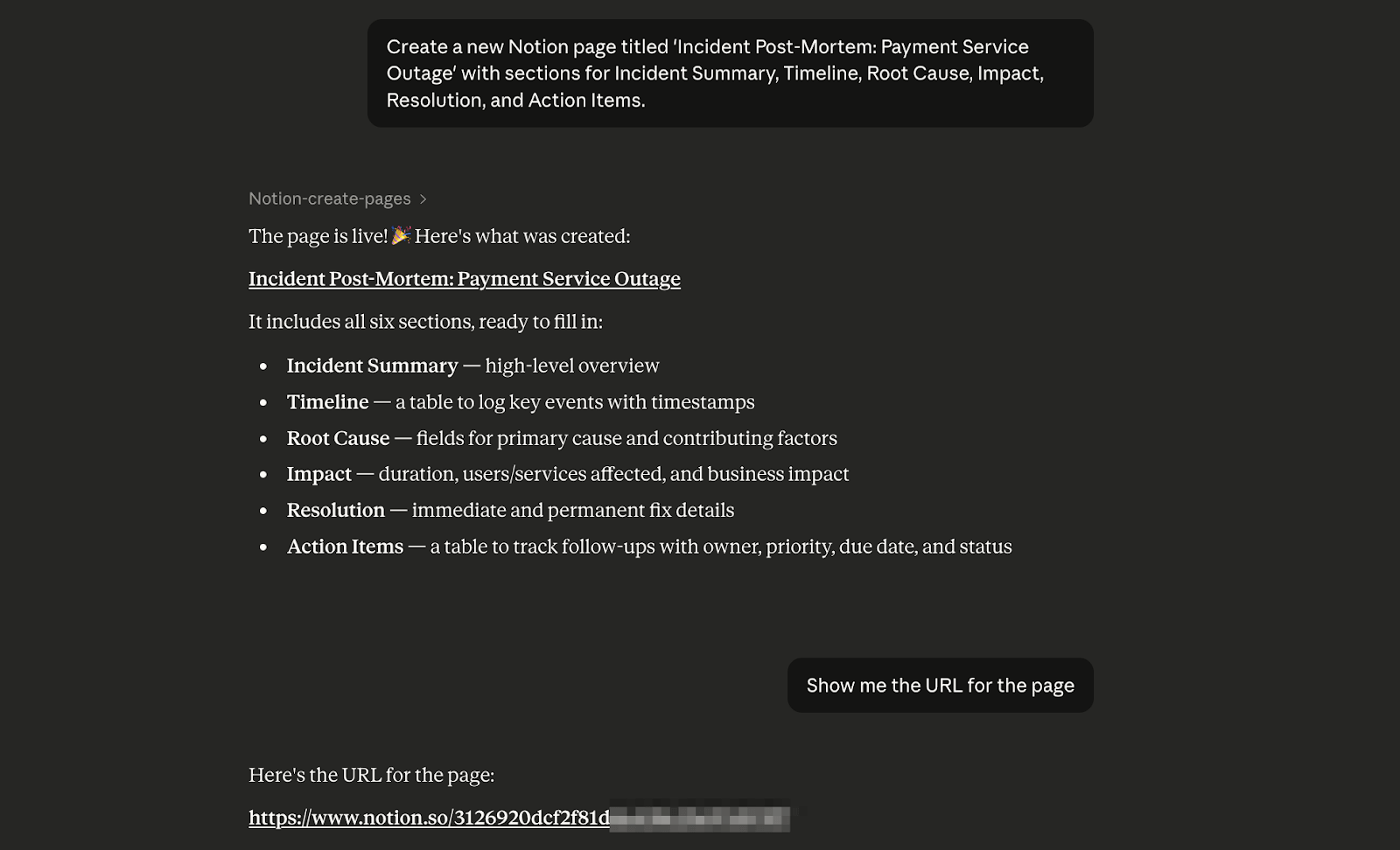
That’s it. You’re connected and ready to start creating and updating Notion content directly from Claude.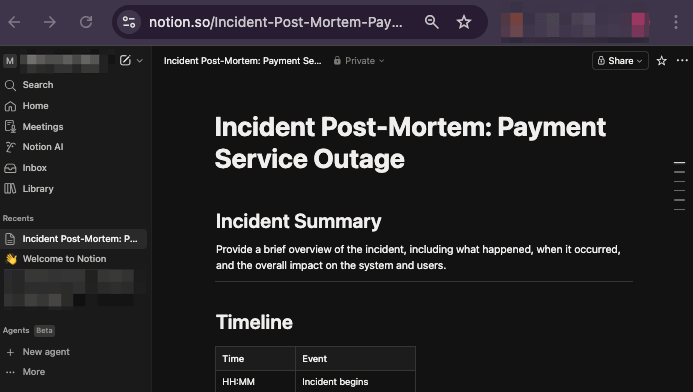
To get the best results, don’t send one huge prompt. Work in small, clear steps and confirm each result as you go.
TL;DR: Most connection problems come from permission scopes, expired authentication, or client glitches and can usually be fixed by reconnecting or restarting the client.
Connecting to a remote MCP server can fail sometimes. These are the usual issues and how to fix them.
This is usually a permission scope issue. So, recheck what your integration is allowed to access.
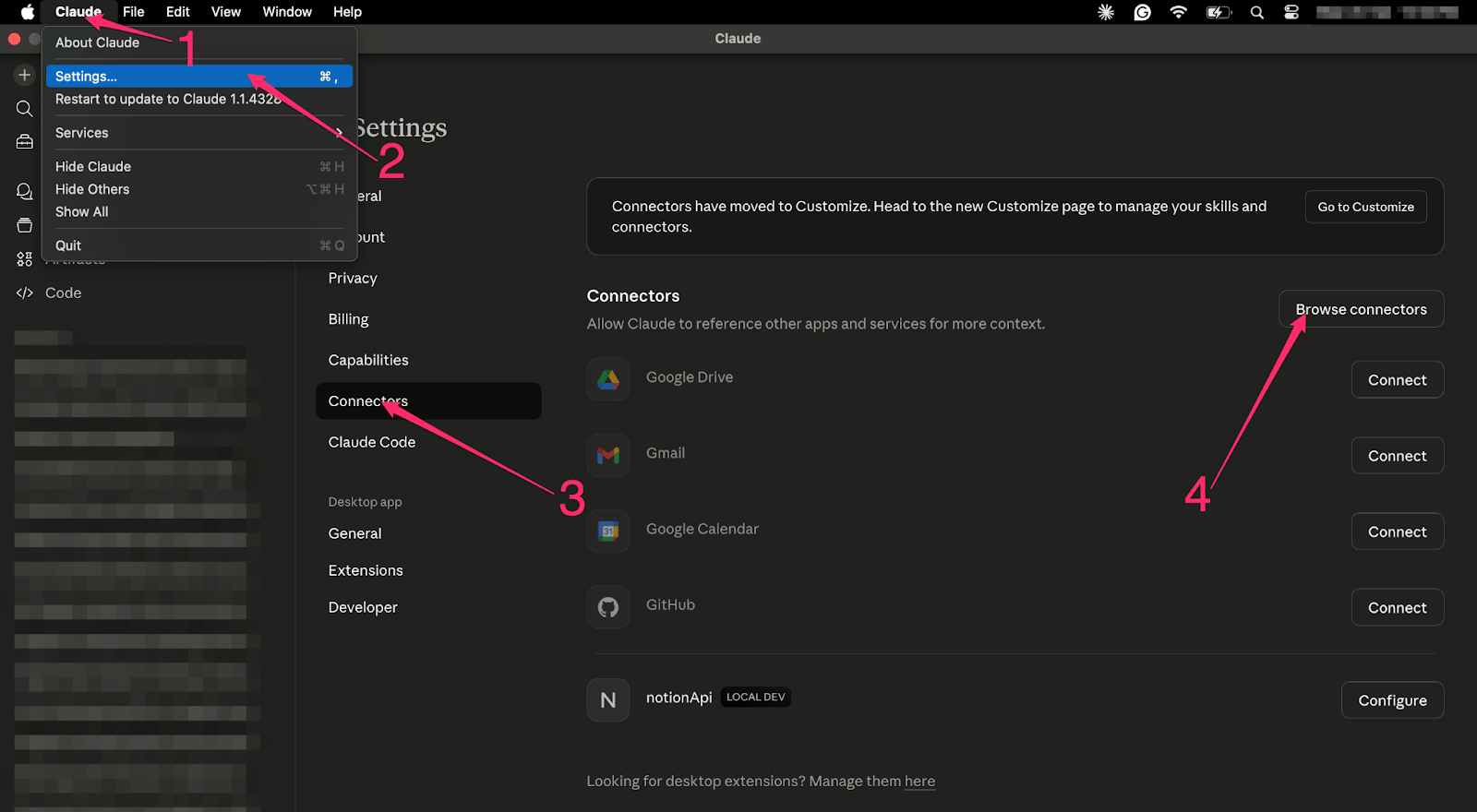
To resolve, try reconnecting your MCP server. For Claude and Notion, go to your Claude Desktop settings, click on Connectors, disconnect Notion, then reconnect to run the OAuth flow again.
Fully quit and reopen your client (Claude Desktop, in our case). A simple restart fixes this in many cases.
Give limited access to your AI client (Claude Desktop, in our case) and then expand later if needed.
TL;DR: Use OAuth authentication, start with minimal permissions, keep secrets out of source control, and confirm available tools after connecting.
Below are some practices that will help you make your connection to a remote MCP server safe and easy to fix if something breaks.
Don’t rely on manual tokens. OAuth is easier, safer, and there’s no risk of leaking secrets.
Give limited access to your AI client (Claude Desktop, in our case) and then expand later if needed.
If you’re using a manual configuration, ensure that you put your tokens or API keys in an .env file and never push to a source control like Git.
To make sure the connection works and you have the right permissions, ask what tools are available.
TL;DR: Agentic AI can generate tests, analyze failures, and automate QA workflows by using MCP to safely access testing tools and data.
When agentic AI operates through an MCP system, it improves testing in practical, measurable ways that directly impact speed, accuracy, and release confidence. Here are the key ways it improves testing.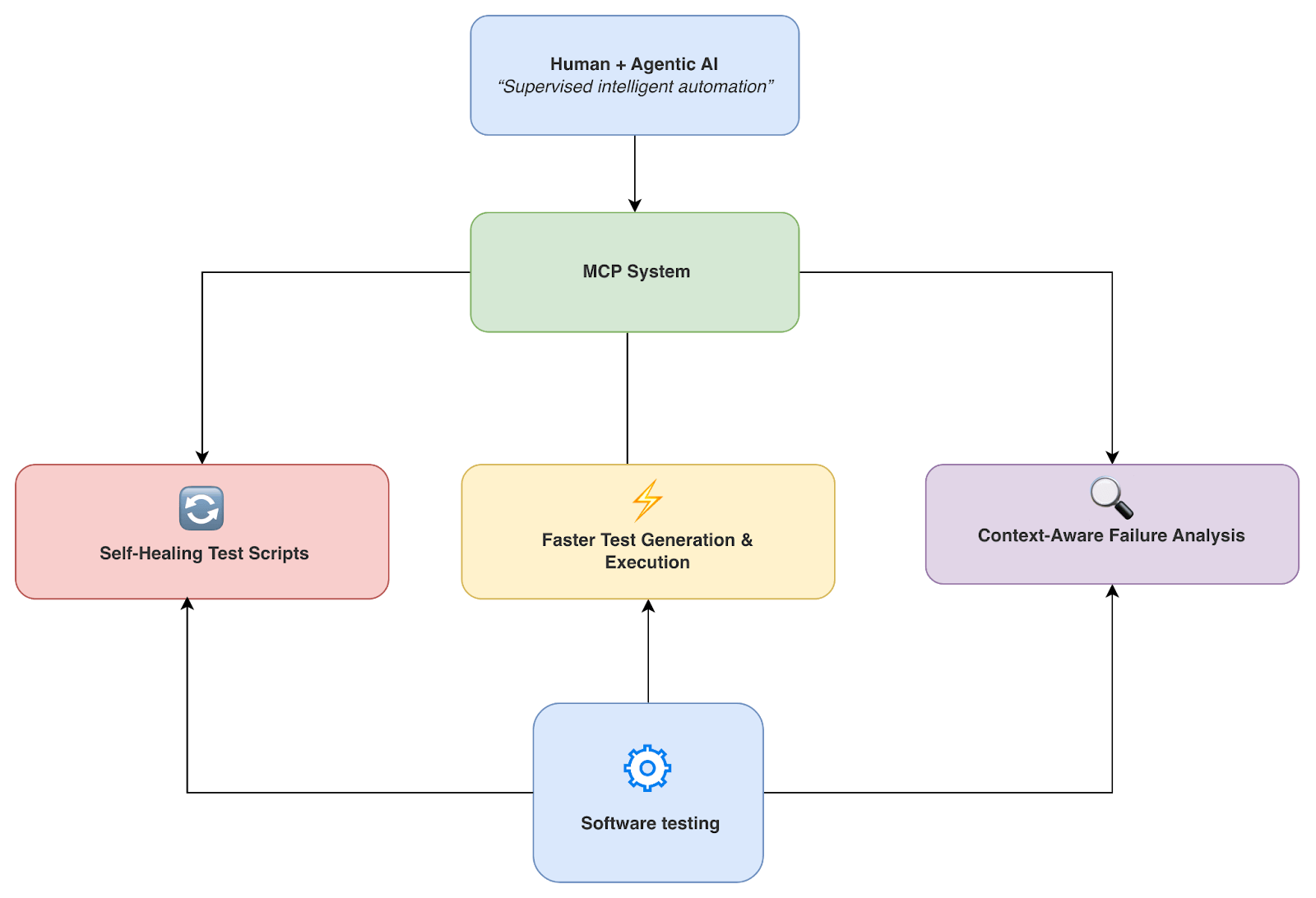
With the MCP context, the agent (with human supervision) detects UI or API changes and automatically adjusts selectors or parameters, reducing flaky failures and minimizing maintenance overhead.
Agentic AI generates tests from requirements or recent commits, then, when approved by QA, executes them instantly through approved MCP tools, shortening feedback cycles and accelerating release validation.
Since it communicates with all your tools via MCP, an agentic system can correlate failed tests with recent code changes, environment variables, and historical runs in one workflow, reducing the usual back-and-forth between CI logs and Git history.
TL;DR: Tricentis tools like Tosca, qTest, and SeaLights use AI-driven automation and test intelligence to improve coverage, traceability, and release confidence.
Tricentis turns agentic testing into something practical. Using MCP, its AI understands real quality data, decides what to test, and executes across the toolchain with human approval.
Tricentis Tosca uses model-based automation to keep tests in sync as your app changes. AI looks at risk and impact to decide what needs to run, so you’re not doing full regressions every time, reducing test maintenance.
With Tricentis qTest, AI creates and reuses test cases from requirements and past work, keeps traceability across the life cycle, and orchestrates automation through DevOps tools—so test management becomes an active, scalable, event-driven quality system.
Tricentis SeaLights provides the coverage and risk signals behind the decisions and blocks untested code changes from reaching production.
Once Claude is connected to Notion via MCP, it stops being just a chat tool—it can create documents, update databases, and manage pages inside your workflow.
That’s what MCP is about: giving AI a standardized way to connect to and interact with external tools and data sources, enabling it to take actions inside your tools.
If you’re in QA or engineering, Tricentis takes this even further with agentic AI testing. Want to make testing faster and less of a headache? Check out Tricentis and see AI-driven testing in action.
This post was written by Inimfon Willie. Inimfon is a computer scientist with skills in JavaScript, Node.js, Dart, Flutter, and Go Language. He is very interested in writing technical documents, especially those centered on general computer science concepts, Flutter, and backend technologies, where he can use his strong communication skills and ability to explain complex technical ideas in an understandable and concise manner.
Some industries that benefit most from using an MCP server are finance, healthcare, e-commerce, and software QA teams—basically, places where testing is complex, and there are many tools and rules to deal with.
Yes, an MCP server can integrate with various cloud platforms. It allows the AI to trigger tests, read logs, and use CI/CD in those cloud platforms through a controlled and safer access layer.
To identify flaky tests and improve test coverage, AI looks at past test runs, failure patterns, and recent code changes to notice unstable tests and suggest what should be fixed or where new tests are needed.